

Accessibility
Over one billion people across the globe live with a disability. EA’s Accessibility Team aims to close the gap between capability and disability by eliminating obstacles that hinder gameplay. They collaborate within Electronic Arts to improve the accessibility of games and services, ensuring that players of all abilities can enjoy their experiences. Their mission is guided by the belief that everyone can make a positive difference in others’ lives.
FC 27 accessibility settings support players with disabilities, helping them enjoy the game more comfortably. A wide range of features, from color blindness adjustments to subtitles, make Football Club 27 a more inclusive experience.
How To Access the FC 27 Accessibility Settings
- From the main Football Club screen, navigate to [Settings];
- Select [Game Settings];
- Press R1/L1 to select the [Accessibility] tab.
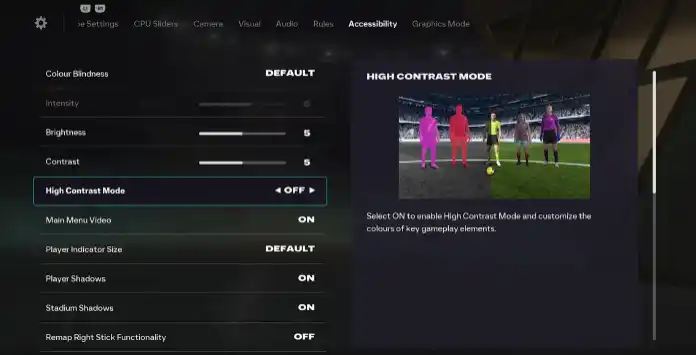
Acessibility Settings
| Setting | Options |
COLOUR BLINDNESS Adjust colours to correct for colour blindness – Protanopia (red weak), Deuteranopia (green walk), Tripanopia (blue weak). |
Default Protanopia Deuteranopia Tripanopia |
INTENSITY Controls the amount of correction that needs to be applied for colour blindness. | From 0 to 10 |
BRIGHTNESS Adjust the brightness settings. | From 0 to 10 |
CONTRAST Adjust the contrast settings. | From 0 to 10 |
HIGH CONTRAST MODE Select ON to enable High Contrast Mode and customize the colours of key gameplay elements. | Off On |
| • Pitch Saturation Adjust the intensity of the pitch color to increase visual separation. | From 1 to 5 |
| • Shader Visual Enable or disable the advanced visual shading effect for better contrast on players and pitch. | Cloth Only Full Body |
| • Home Team Colour Choose the highlight color for the home team. | None 15 colours |
| • Home Goalkeeper Colour Select the display color for the home team’s goalkeeper. | None 15 colours |
| • Away Team Colour Choose the highlight color for the away team. | None 15 colours |
| • Away Goalkeeper Colour Select the display color for the away team’s goalkeeper. | None 15 colours |
| • Ball Colour Set a custom color for the ball to increase visibility on the pitch. | None 15 colours |
| • Referee Colour Set the color displayed for the referee to help distinguish them from other players. | None 15 colours |
MAIN MENU VIDEO Turn on/off the full motion video background in the main menu. | Off On |
PLAYER INDICATION SIZE Change the size of the Overhead indicator. | Default Large Small |
PLAYER SHADOWS Enable or disable player shadows during gameplay. | On Off |
STADIUM SHADOWS Enable or disable stadium shadows from casting onto the pitch during gameplay. | On Off |
REMAP RIGHT STICK FUNCTIONALITY Switch the functionality of the Right Stick to the Left Stick, allowing you to navigate through all menu options with the Left Stick. Note: this applies to menu navigation only. | Off On |
REMAP L1/R1 abd L2/R2 BUTTONS Switch the functionality of L1/R1 buttons and L2/R2 buttons to the Left Stick, allowing you to navigate through all the setting options with the Left Stick. | Off On |
SUBTITLES Select whether to have subtitles on or off. | Off On |
| • Subtitles Text Size Select the preferred size of subtitles that appear during Cinematic scenes. | Extra Large Large Default Small Extra Small |
| • Subtitles Text Colour Choose the color of the subtitle text for better visibility. | Cyan Yellow White Lavender Orange |
| • Subtitles Drop Shadows Enable drop shadows to appear behind subtitle text during Cinematic scenes. | Off On |
| • Subtitles Background Enable a backing bar behind all subtitle text during Cinematic scenes. | Off On |
SIMPLIFIED SKILL MOVES Advanced Skill Moves are possible using right stick gestures and modifiers. | Off On |
CAMERA SHAKE Enables or disables screen vibration effects during gameplay. | Off On |
POV CAMERA SCENES Enables or disables first-person point-of-view cutscenes. | Off On |