

FC 27 Highlighter Replay
The FC 27 Highlighter Replay is available on PlayStation 5, Xbox Series X|S, and PC, offering innovative tools to capture and share unique in-game moments, enhancing the connection between player and game.
With this tool, you can:
- Watch (via Instant Replay, Match Highlights, and Match Recap).
- Edit (using Creator Tools).
After reviewing key moments, you can edit them with Creator Tools to generate high-resolution, customized images and videos to share with the world.
EA Sports Highlighter, featured in multiple EA Sports titles, empowers players with cinematic tools to capture, edit, and share unforgettable match moments, allowing them to craft their own stories.
How to Access Highlighter Replay
- Press Options/Start Button to pause the match you are playing;
- Select [Highlighter Replay].
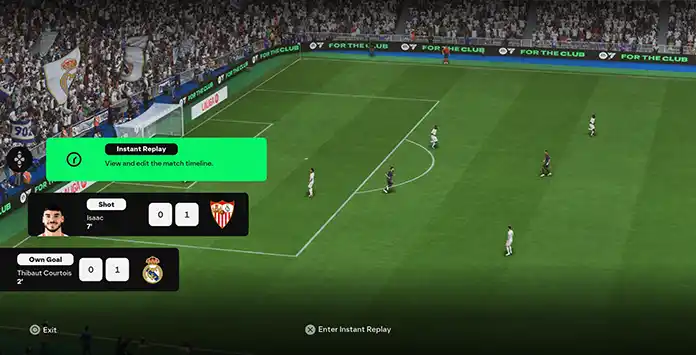
Watch Mode
Whenever you want to revisit a recent play, view a key moment, or check the match summary, just open Highlighter Replay, where all three video types are available in a single, convenient interface.
Instant Replay
The FC 27 Instant Replay feature allows you to replay and review recent moments from single-player matches in real time. You can control the timeline, adjust camera angles, change motion speed, and revisit any scene. This is also where the Rewind feature is located, letting you restart gameplay from a specific point in the match.
Match Highlights
The FC 27 Match Highlights feature lets you watch key moments after a match, including goals, major misses, select saves, fouls, and bookings. This option is available in all FC 27 game modes.
Match Recap
The FC 27 Match Recap feature presents a cinematic summary of your match’s highlights. Unlike Match Highlights, you cannot control what is shown.
In offline matches, Match Highlights can be accessed and saved at any time, while Match Recap is viewable at half-time and full-time. In online matches, both are only available at full-time. Once saved to your console, the videos remain accessible but are no longer available in the game itself.
While using Instant Replay, you can select any in-game camera. For Match Highlights and Match Recap, you can choose from four presets (Broadcast, Hypermotion, 360, and Drone) to customize how you view the highlights.
| Play Forward | R2 | RT |
| Play Backward | L2 | LT |
| Play/Pause |  |  |
| Rotate |  | |
| Zoom |   | |
| Slow Speed |  |  |
| Hide UI | R3 | R3 |
| Creator Mode | L3 | L3 |
| Exit |  |  |
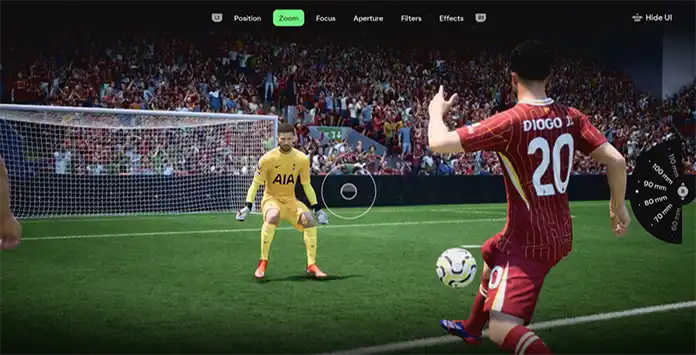
FC 27 Creator Tools
While watching the video, you can edit it using the Creator Tools. This feature provides two mode types, each with its own unique settings and adjustments.
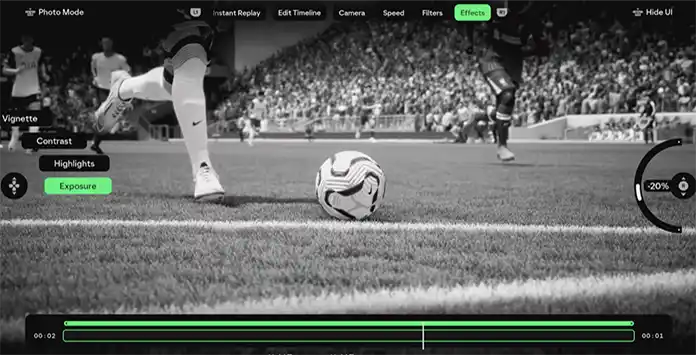
Photo Mode
By pressing L3 while in the Creator Tools, you can produce in-game photos like a professional, rather than relying on screenshots that offer no creative freedom.
Features Available:
– Position (Tilt, Rotate, Position);
– Zoom (from 10mm to 180mm);
– Focus (from 0m to 40m);
– Aperture (from f/1.4 to f/32);
– Filters (None, Monochrome, Cool, Warm, Alive);
– Effects (Vignette, Contrast, Highlights, Exposure).
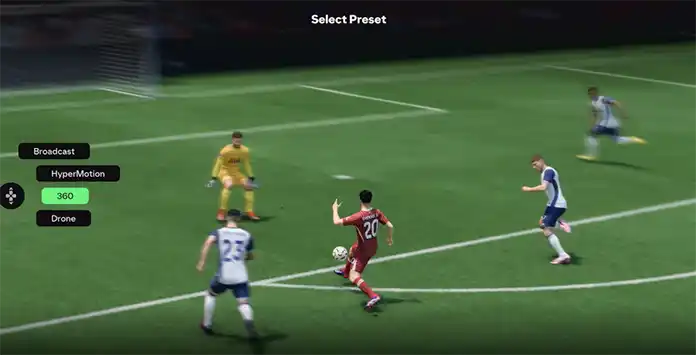
Video Mode
If you want to unleash your creativity, producing, recording, and sharing a video created by yourself can be an excellent option.
Features Available:
– Edit Timeline (Trim, Slice, Move, Duplicate);
– Camera (custom camera or one of the other available cameras);
– Speed (from 0.1x to 6x);
– Filters (None, Monochrome, Cool, Warm, Alive);
– Effects (Vignette, Contrast, Highlights, Exposure).
A custom camera can be saved with specific predefined settings, allowing you to use it again at a later time. When creating a custom camera, you set Position, Zoom, Focus, and Aperture just like you do in the Photo Mode.
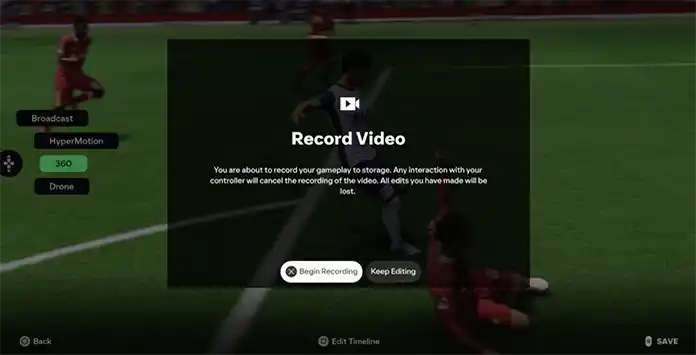
Record your Replays
Saving your match highlights and replays is easy: simply press ‘Save’ when ready. Note that this feature may not be supported on all platforms. If you see a message stating that it is unavailable on your platform, follow the steps below.
PlayStation 4
- Press the [Share] button twice to start recording;
- When you’re done recording, press the [Share] button twice to stop.
- Press the [Xbox] button on your wireless controller;
- Press the [View] button, select [Record from now] and Press [A];
- When you’re done recording, press the [Xbox] button and then [X].