
FC 28 CARRYOVER
FC 28 carries selected progress forward from FC 27, including FC Points, Rivals Division rank and your UT Club Profile. Most other FC 27 data stays in that game.
FC 28 Carryover
When you move from FC 27 to FC 28 Ultimate Team, eligible carryover includes your FC Points, Rivals Division rank and UT Club Profile. Your other FC 27 data remains in FC 27.
Ultimate Team is the mode that supports selected progression carryover. Progress in Player and Manager Career, Seasons, Online Friendlies and Clubs does not carry over from FC 27 to FC 28.
How To Transfer FC 27 data and items to FC 28
- Open FC 28 on your console or PC;
- Follow the on-screen instructions;
- When prompted, confirm the eligible data and items you want to carry over.
Transferable Items
When you move from FC 27 to FC 28, selected Ultimate Team progress carries over.
FC Points
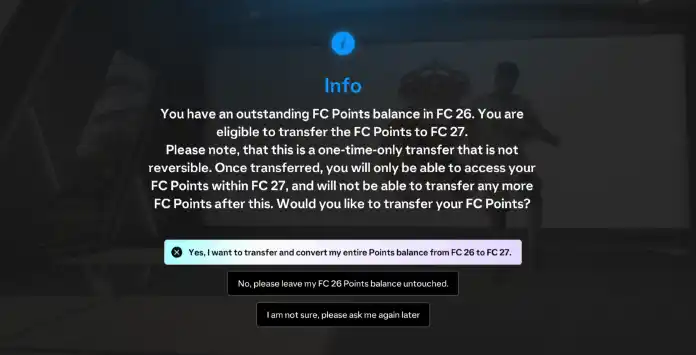
FC Points are the in-game currency used for UT packs, Evolutions and Drafts. You can keep your balance in FC 27 or transfer it to FC 28 before January 01, 2028. This is a one-time transfer, so make your choice carefully when you first launch FC 28.
Rivals Division
Your starting Division in FC 28 Rivals is based on your highest Division in FC 27. Use the same EA Account; if you have progress on multiple platforms, your highest Division rank is used.
UT Club Profile
Your established date remains the same, whether or not you are a UT Founder.
Non-Transferable Items
Most FC 27 progress stays in FC 27 when you start FC 28.
UT Coins
FC 27 and FC 28 have separate coin balances. Coins stay with the game in which they were earned, and your FC 28 club starts with its own balance.
UT Items
FC 27 player, staff, consumable, vanity and stadium items do not carry over to FC 28. Build a new squad in the new title.
Unopened Packs and Unassigned Items
Packs and unassigned items do not transfer to FC 28. Open or assign them before moving on if you want to use them in FC 27.
UT SP
UT SP resets at the end of every season and does not transfer to a new title.
Match Records & History
Your FC 27 Wins/Draws/Losses history does not count towards FC 28.
Club Data
Club statistics, leaderboard information, UT Champions Points, Draft, Objectives and SBC progress do not carry over.
Achievements and Trophies
FC 27 and FC 28 are separate games, so console trophies and achievements are tracked separately.
Transfer your Progress
Cross-Play is supported in Football Club 28, allowing players on compatible platforms to compete together. Cross-play and Transfer Market pools are separate systems. FC 28 groups current-generation platforms together and old-generation consoles together, while Nintendo platforms do not cross-play with other platform families.
Cross-platform carryover is not available between different platform families. Moving eligible progress from FC 27 to FC 28 requires the same EA Account and a compatible platform family. FC Points can be transferred between generations of the same console family, such as PlayStation 4 to PlayStation 5 or Xbox One to Xbox Series X|S, but not between PlayStation, Xbox, PC and Nintendo.
This also applies if you play an FC game on multiple platforms. Even with the same email address, each platform keeps its own separate in-game data and items.
Carryover Scenarios
Carryover depends on whether you are continuing FC 28 or moving from FC 27, as well as the platform family and EA Account you use. These four scenarios cover the main possibilities.
Continue on the Same FC 28 Platform
When you continue playing FC 28 on the same platform and EA Account, your progress remains available.
- PlayStation 5 to PlayStation 5
- PlayStation 4 to PlayStation 4
- Xbox Series X|S to Xbox Series X|S
- Xbox One to Xbox One
- Nintendo Switch 2 to Nintendo Switch 2
- Nintendo Switch to Nintendo Switch
- PC to PC
Ultimate Team progress is shared between generations of the same console family when you use the same EA Account. Progress from other modes may not transfer.
- Between PlayStation 4 and PlayStation 5
- Between Xbox One and Xbox Series X|S
- Between Nintendo Switch and Nintendo Switch 2
Eligible carryover items move to FC 28; players, Coins, squads, packs, records and progress from most modes do not.
- Between compatible PlayStation consoles
- Between compatible Xbox consoles
- Between compatible Nintendo consoles
- From PC to PC, including supported PC stores
Progress does not transfer between platform families or different EA Accounts.
- Between PlayStation, Xbox, Nintendo and PC
- Between different EA Accounts
Frequently Asked Questions
FC 28 carryover starts when you launch FC 28 and sign in with the same EA Account used for FC 27. Follow the on-screen prompt to transfer eligible progress and FC Points.
Launch FC 28 and sign in with the same EA Account you used for FC 27. Follow the on-screen instructions and confirm the eligible Ultimate Team progress and FC Points you want to carry over.
Selected Ultimate Team progress carries over: your FC Points (if you choose to transfer them), your starting Rivals Division based on your highest FC 27 Division, and your UT Club Profile established date. Items such as players, Coins, squads and packs do not transfer.
It was reset. It usually happens when you skip a title or your profile is corrupted. This is particularly frustrating for Founders, players who are playing since the first FC edition.
When you first launch FC 28 and sign in with the same EA Account, a prompt lets you choose whether to transfer your FC Points from FC 27. This is a one-time choice and cannot be reversed. You must make the transfer before January 1, 2028; otherwise, you can keep your balance in FC 27.
Make the one-time transfer the first time you launch FC 28 and before January 1, 2028. If you do not choose to transfer by then, your FC Points balance stays in FC 27.
No. You can only transfer FC Points from FC 27 to FC 27 on the same console. You need to buy FC Points for the console you will use.
In FC 27, your starting Division in Rivals will consider the highest Division you reached in FC 26. This helps you reach an appropriate Division faster, earn better rewards sooner, and prevents new players from facing highly skilled veterans at the beginning of the season.
The exact Division you start in for a new season depends on your placement in the previous season, as illustrated in the table below.
The exact Division you start in for a new season depends on your placement in the previous season, as illustrated in the table below.
FC 26 Division | FC 27 Division |
|---|---|
No. FC 27 and FC 28 have separate Ultimate Team Coin balances. Coins earned in FC 27 stay there, and you start FC 28 with a separate balance.
Yes. FC 28 supports cross-play between compatible platforms in the same generation group. Current-generation and previous-generation consoles are grouped separately, and Nintendo platforms do not cross-play with other platform families.
Make sure that the PlayStation Network, Xbox, Nintendo or PC account you use for FC 27 is linked to the same EA Account used for FC 26. Using the same email address on separate EA Accounts does not share progression.
Yes. With the addition of UT cross-play, the UT Transfer Market was expanded to include cross-platform functionality. The UT Transfer Market will now be combined within pools of platforms with the exception of PC and Switch, which will continue to have their own separate Transfer Markets.
Yes, but it is like you are playing different games. Your current data won’t be shared between different platforms.
No. Everything will start again once you play the final game for the first time.
Yes. When you are playing the EA Play trial, you are already playing the final version of FC 27. The only difference is the 10-hour limit.
A: There are essentially three main reasons for this:
- Playing the same game repeatedly may become unchallenging for many players.
- Electronic Arts resets the game to encourage players to invest in it once more.
- This approach helps maintain a fair, competitive, and sustainable gaming environment.
Double-check if you were not banned and contact the EA Support.
0
0
votes
Article Rating
Subscribe
Login
0 Comments
Newest
Oldest
Most Voted
Inline Feedbacks
View all comments