

FC 27 Highlighter Replay
The FC 27 Highlighter Replay is available on PlayStation 5, Xbox Series X|S, and PC, offering innovative tools to capture and share unique in-game moments, enhancing the connection between player and game.
With this tool, you can:
- Watch (via Instant Replay, Match Highlights, and Match Recap).
- Edit (using Creator Tools).
After reviewing key moments, you can edit them with Creator Tools to generate high-resolution, customized images and videos to share with the world.
EA Sports Highlighter, featured in multiple EA Sports titles, empowers players with cinematic tools to capture, edit, and share unforgettable match moments, allowing them to craft their own stories.
How to Access Highlighter Replay
- Press the Options button on PlayStation or the Menu button on Xbox to pause the match;
- Select [Highlighter Replay].
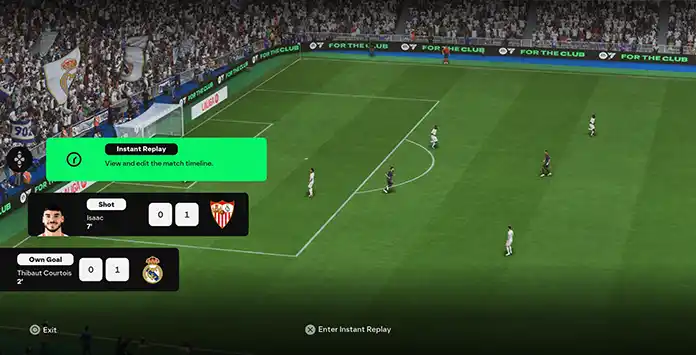
Watch Mode
Whenever you want to revisit a recent play, view a key moment, or check the match summary, just open Highlighter Replay, where all three video types are available in a single, convenient interface.
Instant Replay
The FC 27 Instant Replay feature allows you to replay and review recent moments from single-player matches in real time. You can control the timeline, adjust camera angles, change motion speed, and revisit any scene. This interface also contains the Rewind feature in eligible local Kick-Off matches, allowing you to resume gameplay from a selected point on the recent timeline. Rewind is not available in Career Mode or online matches.
Match Highlights
The FC 27 Match Highlights feature lets you watch key moments after a match, including goals, major misses, select saves, fouls, and bookings. It is supported across FC 27 game modes, although access depends on the type of match. In offline matches, they can be accessed during the match and at full-time. In online matches, they are only available after the match has been completed.
Match Recap
The FC 27 Match Recap feature presents a cinematic summary of your match’s highlights. Unlike Match Highlights, you cannot control what is shown.
In offline matches, Match Highlights can be accessed and saved at any time, while Match Recap is viewable at half-time and full-time. In online matches, both are only available at full-time. Once a video has been saved to your console, the exported file remains accessible through the console’s media gallery, but that saved video will no longer be available through the in-game Highlighter interface.
While using Instant Replay, you can select any in-game camera. For Match Highlights and Match Recap, you can choose from four presets (Broadcast, Hypermotion, 360, and Drone) to customize how you view the highlights.
| Play Forward | R2 | RT |
| Play Backward | L2 | LT |
| Play/Pause |  |  |
| Rotate |  | |
| Zoom |   | |
| Slow Speed |  |  |
| Hide UI | R3 | R3 |
| Creator Mode | L3 | L3 |
| Exit |  |  |
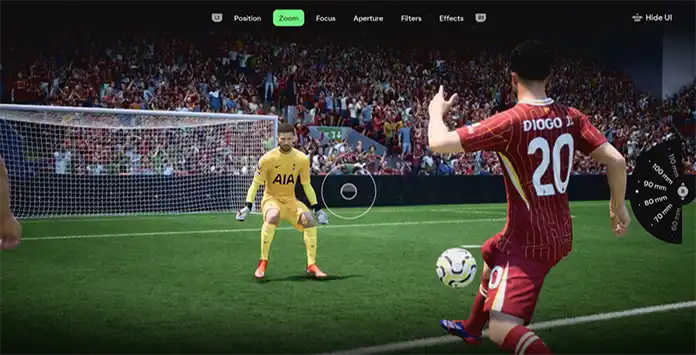
FC 27 Creator Tools
While watching the video, you can edit it using the Creator Tools. This feature provides two mode types, each with its own unique settings and adjustments.
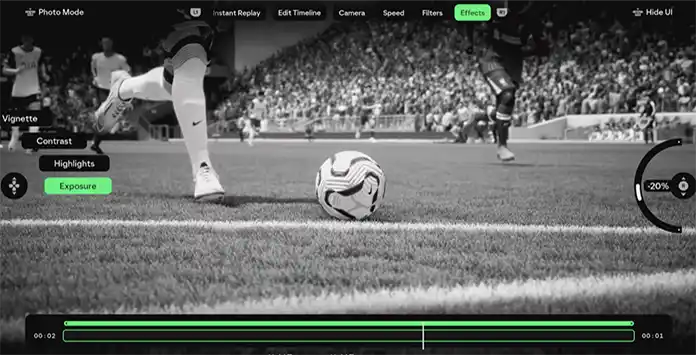
Photo Mode
By pressing L3 while in the Creator Tools, you can produce in-game photos like a professional, rather than relying on screenshots that offer no creative freedom.
Features Available:
– Position (Tilt, Rotate, Position);
– Zoom (from 10mm to 180mm);
– Focus (from 0m to 40m);
– Aperture (from f/1.4 to f/32);
– Filters (None, Monochrome, Cool, Warm, Alive);
– Effects (Vignette, Contrast, Highlights, Exposure).
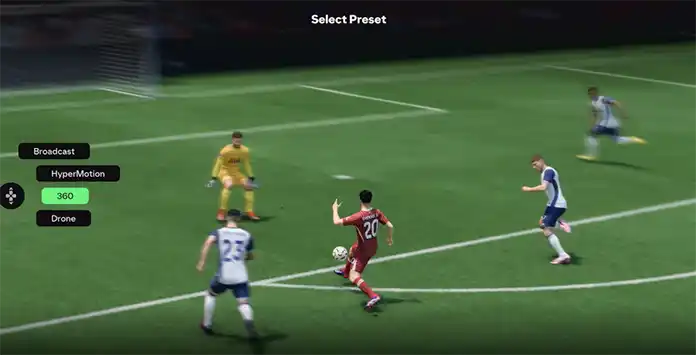
Video Mode
If you want to unleash your creativity, producing, recording, and sharing a video created by yourself can be an excellent option.
Features Available:
– Edit Timeline (Trim, Slice, Move, Duplicate);
– Camera (custom camera or one of the other available cameras);
– Speed (from 0.1x to 6x);
– Filters (None, Monochrome, Cool, Warm, Alive);
– Effects (Vignette, Contrast, Highlights, Exposure).
A custom camera can be saved with specific predefined settings, allowing you to use it again at a later time. When creating a custom camera, you set Position, Zoom, Focus, and Aperture just like you do in the Photo Mode.
Record your Replays
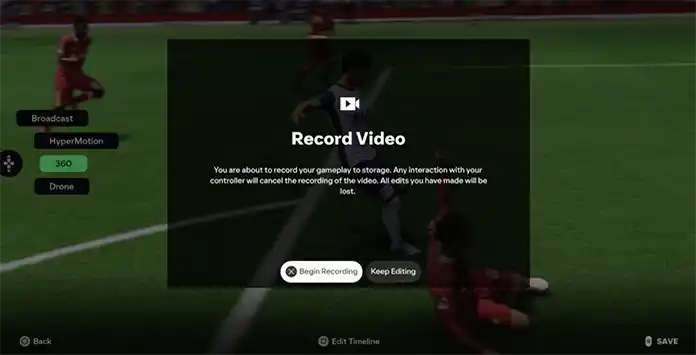
Native video saving through EA SPORTS Highlighter is supported on PlayStation 5 and Xbox Series X|S. After editing a clip, select the available save or export option to store it on your console.
On PC, Highlighter and Creator Tools are available, but native video saving may not be supported. You may need to use your graphics card’s recording software or another screen capture tool to record the finished replay.