

Squad Builder
The Squad Builder tool in FC 27 Ultimate Team allows you to quickly assemble a playable squad or fill the available positions in a Traditional Squad Building Challenge. It selects Player Items from your Club according to the filters and sorting options you define, reducing the amount of manual searching required.
Squad Builder automatically fills the squad with Player Items that match your selected parameters. It can prioritize factors such as quality, nationality, league, club, acquisition date, trade status or Overall Rating. However, it does not necessarily create the strongest possible team or achieve the highest possible Chemistry.
You can access Squad Builder wherever conventional squad creation is supported, including the Squad menu and Traditional SBCs. Always review the completed squad before entering a match or submitting a challenge, particularly if the builder has selected valuable, high rated or frequently used Player Items.
Squad Builder is not used in the same way for Streamlined SBCs. Instead of submitting a complete squad, these challenges allow you to select eligible Player Items and contribute their individual scores until the required SBC Score is reached.
How to Access Squad Builder
- From the main Ultimate Team screen, press R1/RB until you reach the [Club] tab;
- Select [Squad];
- Press L3 to open [Squad Actions];
- Select [Squad Builder];
- Configure the available filters and confirm your selection;
- Review the generated squad before saving or using it.
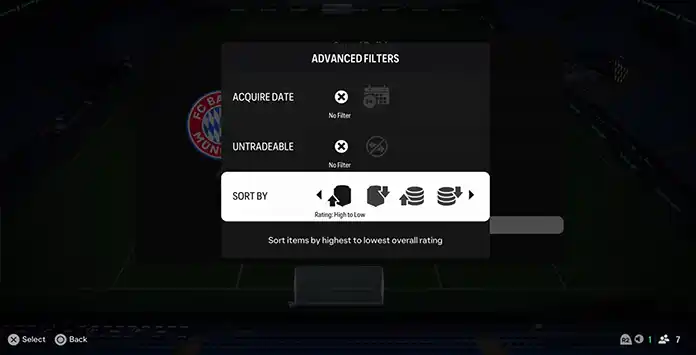
The Filters
FC 27 Squad Builder creates a squad based on the parameters and sorting preferences you select. The available filters allow you to control which Player Items can be considered and how eligible Items should be prioritized.
- Quality
Limits the search to a selected Player Item quality, such as Bronze, Silver, Gold or Special. - Nation/Region
Limits the search to Player Items from a selected nation or region. - League
Limits the search to Player Items from a selected league. - Club
Limits the search to Player Items from a selected club. - Formation
Defines the formation used by Squad Builder when creating a new squad, when this option is available. - Replace Players
When enabled, Squad Builder can replace Player Items already occupying squad slots. When disabled, it only attempts to fill the available empty positions. - Concept Players
When enabled, Squad Builder can use virtual representations of Player Items you do not own. The resulting squad becomes a Concept Squad and cannot be used in matches or submitted into an SBC until every Concept Player is replaced with an eligible Item from your Club. - Acquire Date
Prioritizes Player Items according to when they were added to your Club. - Untradeable
Controls whether tradeable or untradeable Player Items are included or prioritized. - Sort By
Determines how eligible Player Items are prioritized, such as by Overall Rating or Quick Sell Value.