
FC 27 EA CONNECT
The FC 27 EA Connect widget allow players to search, add, and send/receive invites across platforms.

How to Access the EA Connect Widget
The FC 27 EA Connect allows you to search, add, and send/receive invites across platforms.
Previous know as EA Social, the EA Connect widget let you easily access at any time:
- By following the on-screen button prompt in the bottom right corner of the FC 27 main menu (pressing R2/RT);
- From additional screens throughout the game, including game mode menus and the pause menu in online multiplayer matches.
- Friends;
- Party;
- Inbox;
- Friend Requests;
- Player Search;
- My Club;
- Recently Met.
| ▲ My Club tab |
Frequently Asked Questions
The FC 27 EA Connect widget was created to allow you to:
- View and manage friends;
- Search for and add players;
- Manage friend requests;
- Create and manage parties;
- Send and receive game invitations;
- Communicate using predefined Quick Messages;
- View members of your active club;
- Find players you have recently met.
If you want to add someone to your friend’s list within FC 27 EA Connect, follow these steps:
- From the main screen, press R2/RT to enter in the EA Connect widget;
- Press R1/RB to navigate to [Player Search];
- Type the ID of your friend;
- Select [Add friend].
You can see additional information about your friends on your list by highlighting the player and observing the details on the far right of the UI. These details include:
- Online Status (only EA titles if cross-platform friend only);
- Lobby Status (within Football Club);
- Invite compatibility (if they are incompatible players);
- Access additional Player Actions: mute, remove friends, block, and report.
Offline friends on local platforms are displayed with their platform name and corresponding platform icon. If a friend was added only through the EA Network, their EA Account ID appears alongside an EA-themed icon.
Platform indicator icons show which platform a player is using within FC and EA Social. In the widget, you can easily identify players on the same platform as you, while players on other platforms are represented with a generic icon.
When you perform a search, all matching results across different platforms are displayed, along with their corresponding platform indicator icons.
When searching for a friend, the search is not case-sensitive, but it requires an exact match to locate a player. For example, if a player’s name is “EASPORTSFC,” searching for “EASPORTSF” will not return a result.
You have the option to manage when you would like to see certain notifications through the widget’s settings. The three available notification settings are:
- Allow notifications to display whenever they come in;
- Do not show notifications during gameplay;
- Never show notifications.
You can choose when EA Connect notifications are displayed through Social Settings. The available options allow notifications to appear at any time, hide them during gameplay, or disable them completely.
The red indicator badge shows that you have a pending notification in EA Connect, such as a friend request, game invitation, or Quick Message. Open the widget and check the highlighted tab to view it.
No. You normally need to add a player as a friend before inviting them. Even friends may be unavailable if the selected game mode does not support playing together, if they are using an incompatible platform generation, or if either player has disabled cross-play.
Yes. EA Connect includes Quick Messages, a selection of predefined phrases and emoji reactions that can be sent to other players. Custom text messages cannot be entered.
The Full EA Connect Invite Experience opens the complete EA Connect screen, giving you access to all EA Social features. From this screen, you can accept invites, search for and request new friends, and send invitations, all in one place. It also indicates whether the selected game mode supports cross-play invitations.
A cross-platform game invitation can only be seen within EA Connect. When received, EA Connect displays an on-screen notification that enables you to accept or decline the invite. Notifications from EA Connect can appear throughout the game and while in gameplay. Still, they can only be interacted with in gameplay through a specific button callout to not interfere with the match being played.
Friends
The Friends tab in EA Connect combines all your friends from two sources: your local platform’s friend list and the EA Network. While these lists remain separate behind the scenes, they are displayed together in the EA Connect Friends List, allowing you to send invites across all compatible game modes in Football Club 27.
The list shows which friends are online or offline, along with the platform they are using. A specific icon indicates when cross-play is not available, helping you identify players who cannot join your session. Friends from your local platform are listed first, followed by cross-platform friends in both the online and offline sections.
Party
In EA Connect, you can send and receive game invitations from both local platform players and cross-platform friends, all in a single, convenient location.
Receiving
When you get an invite from a player on the same platform, a standard platform-specific notification appears, allowing you to accept or decline it. Simultaneously, the invite is also logged in EA Connect; this version does not trigger an on-screen notification but can be accessed in the Game Invites tab within EA Connect.
Sending
All game mode invites are now handled through the EA Connect widget, with two invite flows available:
- The full EA Connect invite experience, implemented in Clubs Drop-ins;
- The EA Connect Friend Picker invite, used across other game modes that support invitations.
Quick Messages
EA Connect lets you communicate with other players using a selection of predefined quick messages. This provides a simple and safe way to coordinate matches, invite players, respond to teammates, or react after a game without typing a custom message.
A small selection of frequently used messages is immediately available, including:
- Hi!
- Let’s play!
- Ready?
- I’m ready
- Want to join?
- Wave emoji
- Be right back
- Be right there
- Can I join you?
- I have to go
- Invite me
- I’m ready
- Let’s play!
- Let’s play again soon
- Let’s start a group
- Play another?
- Ready?
- Rematch?
- Want to join?
- Add me
- Hi!
- My mic’s off
- Fun game!
- GG
- Let’s go!
- Nice one!
- Well played
- Ready to lose?
- Too easy
- You got lucky
Inbox
The Inbox brings together your EA Connect conversations and notifications. From this tab, you can review recent Quick Messages and other social interactions, making it easier to keep track of communication with friends and other players.
Messages are displayed in chronological order, with unread items clearly highlighted to help you prioritize responses. The Inbox also supports quick actions, enabling you to accept invites or reply to messages without leaving the interface.
Friend Requests
Friend requests sent to you via EA Connect appear here, similar to game invites.
You can accept or decline each request directly from this tab. If a request is missed, a red indicator will appear on the EA Connect widget, guiding you to the pending requests in the Friend Requests tab.
Once accepted, the new connection is added to your Friends List, showing their platform icon, platform name, and current online or offline status.
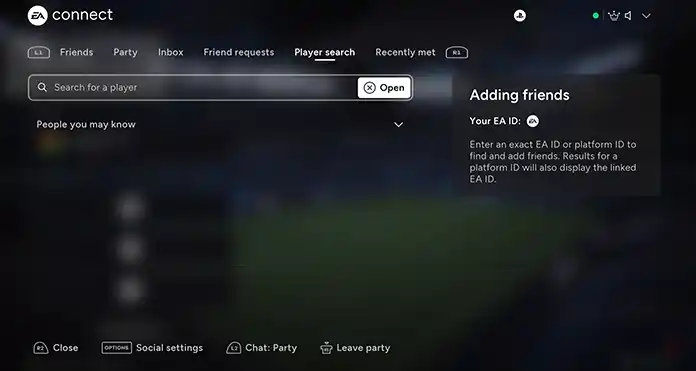
Player Search
FC 27 EA Connect automatically shows all your existing platform friends in the Friends tab. To connect with players on other platforms, you need to search for and add them via EA Connect.
How to add a player to your list
- From the main screen, press R2/RT to open the EA Connect widget;
- Press R1/RB to navigate to [Player Search];
- Type your friend’s ID;
- Select [Add friend].
My Club
The My Club tab displays the members of your active Clubs team, making it easier to find and interact with your teammates directly through EA Connect.
If you are not currently part of a club, this tab displays an option to access The Grounds, where you can join or create one.
Recently Met
This tab works like a friends list, keeping track of the last 30 players you’ve played with or against in Football Club, including those not on your EA Connect friends list.
Selecting a player from this list lets you send a friend request, block, mute, or report them for offensive behavior or inappropriate names.