
FC 27 PLAYTIME
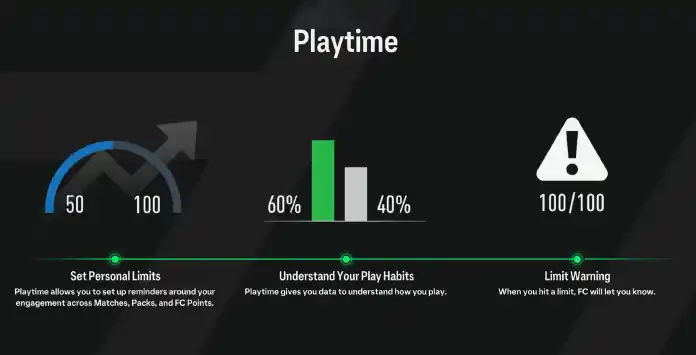
FC 27 Playtime is a suite of tools that enable players to control time spent and set limits for matches, packs, and FC Points purchased.

Playtime Feature
FC 27 Playtime is a set of tools that helps you monitor your gaming activity and set personal reminders for matches, Ultimate Team Packs, and FC Points purchases.
You can review your time spent in Football Club 27, the number of matches played across all game modes, the FC Points purchased, and the Ultimate Team Packs opened with Coins or FC Points.
FC Playtime includes four main tools:
- Time Spent;
- Match Limits;
- Pack Purchase Limits;
- FC Points Purchase Limits.
How to Enable
FC Playtime is disabled by default and must be enabled before its activity tracking and limit tools can be used. The setting is synchronized across your devices.
How to Enable FC 27 Playtime on Console or PC
- From the main FC 27 menu, select [Settings];
- Select [Online Settings];
- Select [Privacy Settings];
- Enable [Share Playtime Usage Data].
- Launch the Web or Companion App;
- Select [Settings];
- Enter [Playtime];
- Enable [Enable Playtime].
How to Access
Once enabled, there are several ways to access FC 27 Playtime tools.
How to Access FC Playtime from the main menu
- From the main FC 27 screen, select [Settings];
- Select [Playtime].
- From the main UT 27 screen, press R1/RB to select the [Club] tab;
- Select [Settings] and then the [Playtime] tile.
- Launch the Companion or Web App;
- Select [Settings] and enter [Playtime].
Frequently Asked Questions
FC 27 Playtime is a suite of tools that lets players control time spent and set limits for matches, packs, and FC Points purchased.
FC Playtime gives you free access to the following tools:
- Time Spent;
- Match Limits;
- Pack Limits;
- FC Points Purchase Limits.
Playtime is disabled by default. You must grant permission to collect data in the privacy settings screen.
You must enable it, as EA Sports uses data from your console and the Companion App to operate the Playtime feature in the game.
To enable Playtime, follow these steps:
- From the main FC screen, navigate to [Settings];
- Select [Online Settings];
- Select [Privacy Settings];
- Select ‘Share Playtime Usage Data’ and enable it.
To access Playtime, follow these steps:
- From the main FC 27 screen, select [Customize];
- Select [Playtime].
If the Companion App or Web App is open while you adjust your in-game settings, you may need to log out of the app for the changes to take effect.
FC Playtime tracks your time spent in FC 27 and the number of matches played weekly (excluding Simulated Career Mode matches). Time Spent includes both in-match and menu navigation time, divided into two categories:
- Online Time
This covers periods when you are connected to EA Servers and FC is active. The counter stops when the session times out. - Offline Time
This includes time spent in the game while disconnected from EA Servers. It is stored locally, never uploaded, and resets to zero each week.
You can only see the time spent in the FC 27 Companion and Web App within the apps themselves. It will appear as a different value to your time in-game on a console or PC.
The total time and average time displayed in-game on console and PC doesn’t include time spent on the FC 27 Companion App and Web App, but console and PC time is factored into the total and average weekly time displayed in the Companion and Web App.
The total time and average time displayed in-game on console and PC doesn’t include time spent on the FC 27 Companion App and Web App, but console and PC time is factored into the total and average weekly time displayed in the Companion and Web App.
Time spent in menus can count towards your total. However, the Online Time counter stops when your connection session times out. The way time is recorded can also depend on the platform and its suspend or rest mode.
Certain conditions change how Time Spent is calculated:
- Xbox One and Xbox Series X|S in Suspend Mode
The timer stops instantly; - Xbox One and Xbox Series X|S in Constrain Mode
A disconnect will happen after several minutes of EA Server inactivity; - PlayStation 4 and PlayStation 5 in Rest Mode (inactive)
The timer stops instantly; - PlayStation 4 and PlayStation 5 in Rest Mode (active)
The timer runs for about a minute before pausing.
Match Limits can be viewed in the Web and Companion Apps, but they can only be changed in game on console or PC. Pack Purchase Limits and FC Points Purchase Limits can be changed through the Ultimate Team Playtime menu or through the Web and Companion Apps.
Weekly limits roll over on Sunday night at midnight GMT.
rom the FC 27 main menu, select [Settings], [Playtime], [Match Limits], and [Edit Limit]. Enter the number of matches you want to play per week before receiving a reminder. Match Limits are shared across all game modes, although simulated Career Mode matches are excluded.
FC Points purchase information is only available when Playtime is accessed through Ultimate Team, the Web App, or the Companion App. Make sure Playtime is enabled and restart the relevant App after changing the setting.
When you access FC Playtime through Ultimate Team, it lets you see how many FC Points you have bought in UT. You can set a limit from the FC Points Limit menu by following these steps:
- From the UT main screen, press R1/RB twice to go to the [Club] tab;
- Select [Settings];
- Select [Playtime];
- Select [FC Points Purchase Limit];
- Select ‘Edit Limit’;
- Using the on-screen keypad, set a limit for how many FC Points you can buy per week.
FC Points bought outside of Ultimate Team, such as retail cards or first-party stores, are added to your weekly FC Points total and all-time purchases once redeemed, and after you log out of UT and log back in.
When you access FC Playtime through Ultimate Team, it lets you see how many Packs you’ve opened in UT. You can set a limit from the UT Pack Limit menu by following these steps:
- From the UT main screen, press R1/RB twice to go to the [Club] tab;
- Select [Settings];
- Select [Playtime];
- Select [Pack Purchase Limit];
- Select ‘Edit Limit’;
- Using the on-screen keypad, set a limit for how many UT Packs you can get per week.
When you reach or attempt to exceed a Playtime limit, a reminder is displayed. The reminder does not block the activity, so you can continue if you choose.
You can choose from three different actions when you receive a reminder:
- OK
Choosing this will acknowledge the reminder and take you back to the previous menu you were in; - Review Limits
Choosing this will take you to the FC Playtime menu so that you can adjust your limits; - Ignore For 1 hour
Choosing this will allow you to go past your limit for one hour.
FC Playtime was initially launched on November 12, 2020, for PC and on November 17, 2020, for PlayStation 4, Xbox One, and the Companion/Web App. Since its introduction, it has been included in every title from day one.
Enabling or disabling Playtime is synchronized across connected devices using the same EA Account. However, some statistics are recorded separately. Time spent in the Web and Companion Apps appears separately from in game time, while offline activity is stored locally on the device.
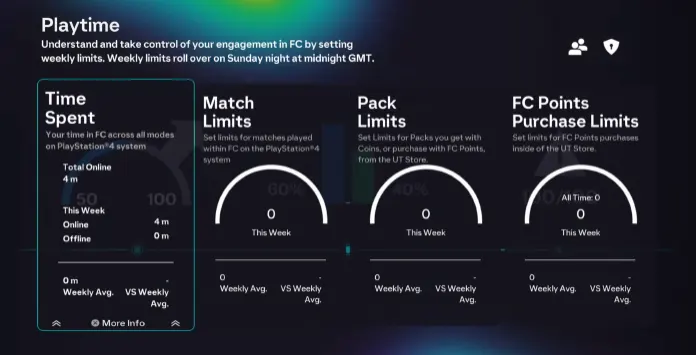
Time Spent
Time Spent includes time spent in matches and menus. Online Time is recorded while the game is active and connected to EA Servers. Offline Time is stored locally, is never uploaded, and resets each week. Time spent in the Web and Companion Apps is displayed separately within those Apps.
The data you can see here is as follow:
- Total Online
Total time spent with the game open since the first time you have played it or since you have enabled Playtime. - Your Current Week Online Time
Time spent with the game open and connected to EA Servers. - Your Current Week Offline Time
Time spent with the game open and not connected to EA Servers. - Your Average Time per Week
It is calculated every Sunday, using your weekly online time only.
Match Limits
In ‘Match Limits’, you can set weekly restrictions for matches played on your account on the current FC platform. Whether in Career Mode, Ultimate Team, or Kick-Off, you can monitor your weekly match count across all FC 27 modes, compare it to your average, and establish weekly limits.
The data you can see here is as follow:
- Number of Matches Played on the Current Week
It considers the matches played in any FC game mode while connected to EA Servers (online) and the ones when you are not connected (offline). You have to log in before Sunday to have these matches calculated against your Weekly Average. - Limit of Matches per Week
The limit is default set to ‘unlimited’, but you can change it to any value you want. - Average Weekly Matches Played
The average weekly calculation only considers weeks where you logged into Football Club and connected to EA Servers at least once.
Pack Limits
In ‘Pack Limits’, you can set weekly limits for packs bought with your account within FC on the current platform.
The data you can see here is as follow:
- Number of Packs Bought on the Current Week
It takes into account every pack you bought in the Ultimate Team store. Packs from rewards such as gameplay and objectives do not count. - Limit of Packs per Week
Here you can set limits for packs you get with coins or purchase with FC Points from the UT Store. By default, the limit is set to ‘unlimited,’ but you can change it to any value you want. - Average Weekly Packs Bought
The average weekly calculation only considers weeks where you acquired a pack in the store with coins or purchased a pack with FC Points. It is calculated every Sunday by comparing your total pack transactions against your active weeks.
FC Points Purchase Limits
In ‘FC Points Purchase Limits’, you can set weekly limits for FC Points bought with your account within FC on the current platform.
The data you can see here is as follow:
- Number of FC Points Bought on the Current Week
It takes into account FC Points you purchase in game or outside of the game, such as through retail cards or first party platform stores. - Limit of FC Points per Week
Here you can set limits for FC Points purchases inside the UT Store. By default, the limit is set to ‘unlimited,’ but you can change it to any value you want. - Average Weekly FC Points Bought
The average weekly calculation only considers weeks where you logged into FC and made a FC Points transaction. It is calculated every Sunday by comparing your total FC Points transactions against your active weeks.
5
1
vote
Article Rating
Subscribe
Login
0 Comments
Newest
Oldest
Most Voted
Inline Feedbacks
View all comments